Workflows
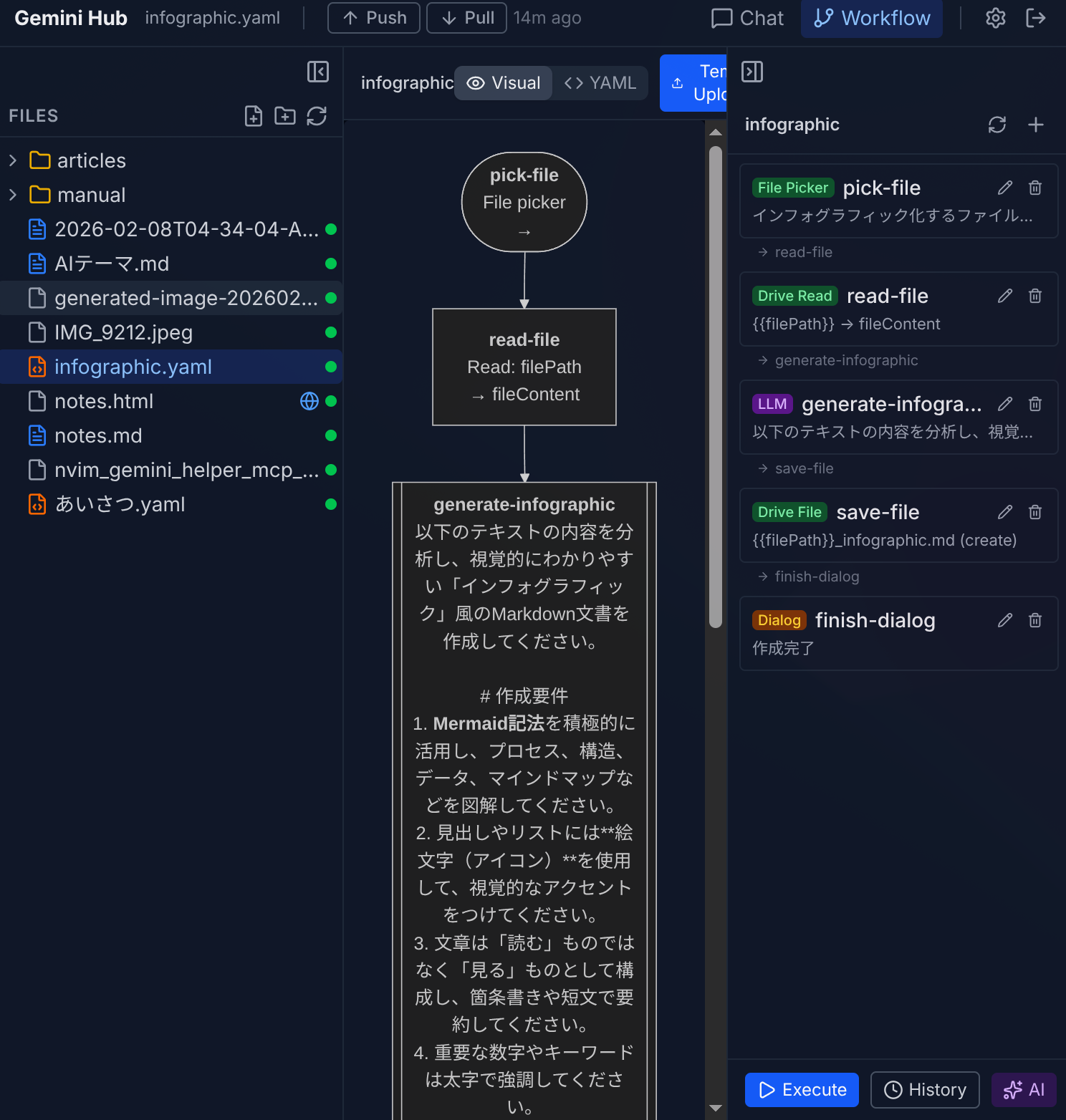
Workflows let you automate multi-step tasks. They are defined in YAML files and visualized as Mermaid flowchart diagrams. You can create them manually or let AI generate them from a natural language description.
Creating a Workflow
- Create a new
.yamlfile from the file tree. - Edit the workflow properties in the right sidebar or write YAML directly in Raw mode.
- Preview the flowchart diagram in Preview mode.
AI Workflow Generation
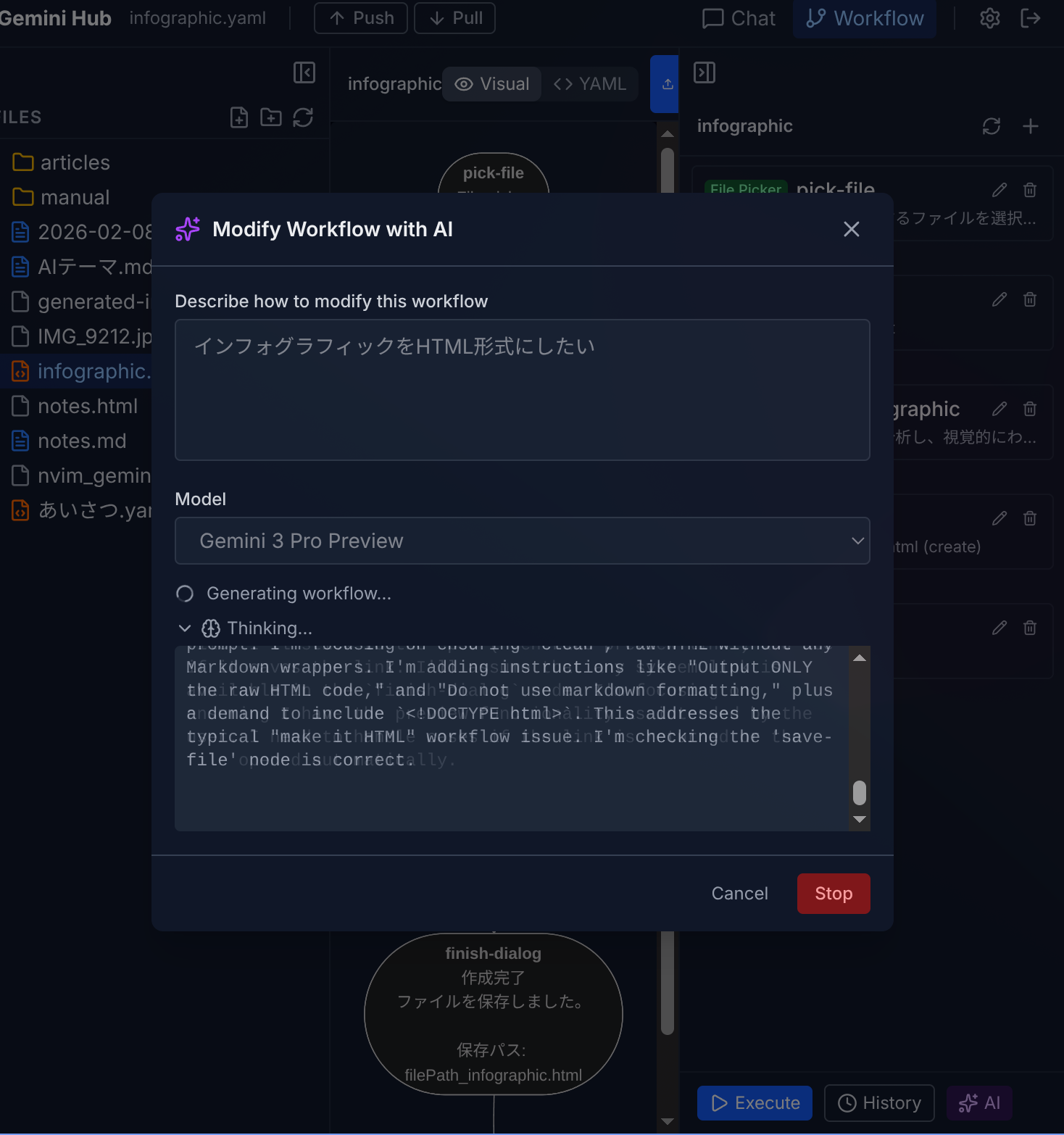
Describe what you want in plain language and AI will create the workflow YAML for you. Click the AI Generate button in the workflow editor, type a natural language description (e.g. "Read all Markdown files in the reports folder and summarize each one"), and the AI generates the corresponding YAML definition. A live Mermaid diagram preview updates as the YAML is generated, so you can see the workflow structure in real-time.
You can iteratively refine the generated workflow by giving follow-up instructions in the same dialog — for example, "add an error handling branch" or "save the summary to a new file". The AI modifies the existing YAML while preserving your previous changes.
Running a Workflow
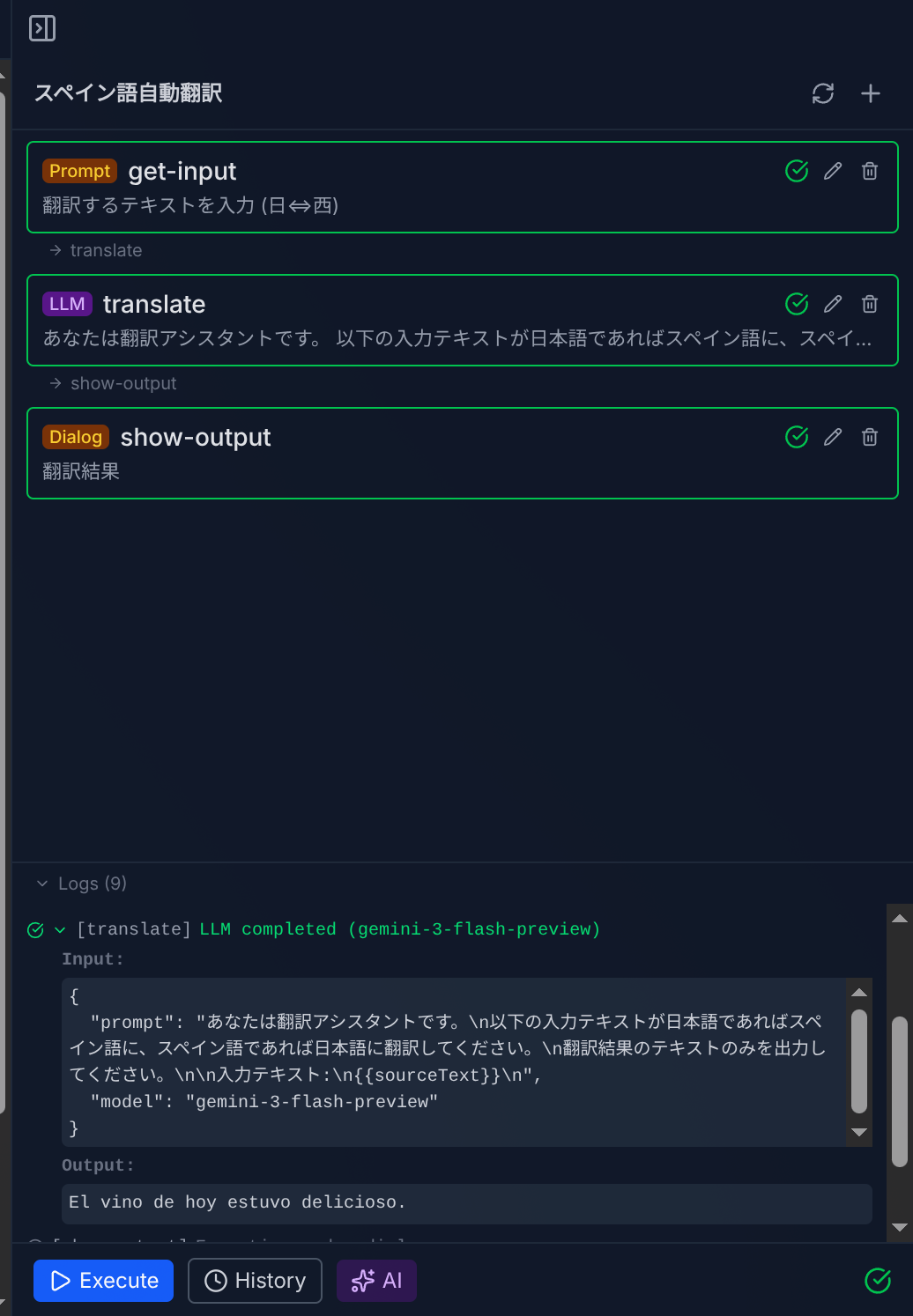
- Open a workflow file and switch to the Workflow panel in the right sidebar.
- Click Run to start execution.
- The execution log shows each node's status in real-time.
- Interactive nodes (prompts, dialogs, file pickers) pause execution and wait for your input.
- Click Stop to cancel a running workflow.
Note: You must sync the workflow to Drive (Push to Drive) before executing it.
Node Types (24 types)
Control Flow
- variable — Declare and initialize a variable.
- set — Update a variable with an expression (supports arithmetic).
- if — Conditional branching based on a condition.
- while — Loop while a condition is true.
- sleep — Pause execution for a specified duration.
AI / LLM
- command — Run a Gemini AI prompt with optional function calling, attachments, and system prompt.
Drive Operations
- drive-file — Create or update a file on Drive.
- drive-read — Read a file's content.
- drive-search — Search files by query.
- drive-list — List files with sort and filter options.
- drive-folder-list — List folders only.
- drive-file-picker — Interactive file picker dialog.
- drive-save — Save binary/text data to Drive.
- drive-delete — Move a file to trash.
Interactive Prompts
- prompt-value — Ask the user for text input.
- prompt-file — Ask the user to select a Drive file.
- prompt-selection — Ask for multiline text input.
- dialog — Show button choices with optional input field.
Integration
- workflow — Execute another workflow (sub-workflow).
- json — Parse a JSON string variable.
- http — Make HTTP requests (GET, POST, etc.).
- mcp — Call an MCP tool.
- rag-sync — Sync a file to the RAG store.
- gemihub-command — Special commands (encrypt, publish, rename, etc.).
Template Variables
Use {{variable}} syntax to reference variables in node properties. Supports nested access ({{obj.key}}) and array indexing ({{arr[0]}}).
Execution History
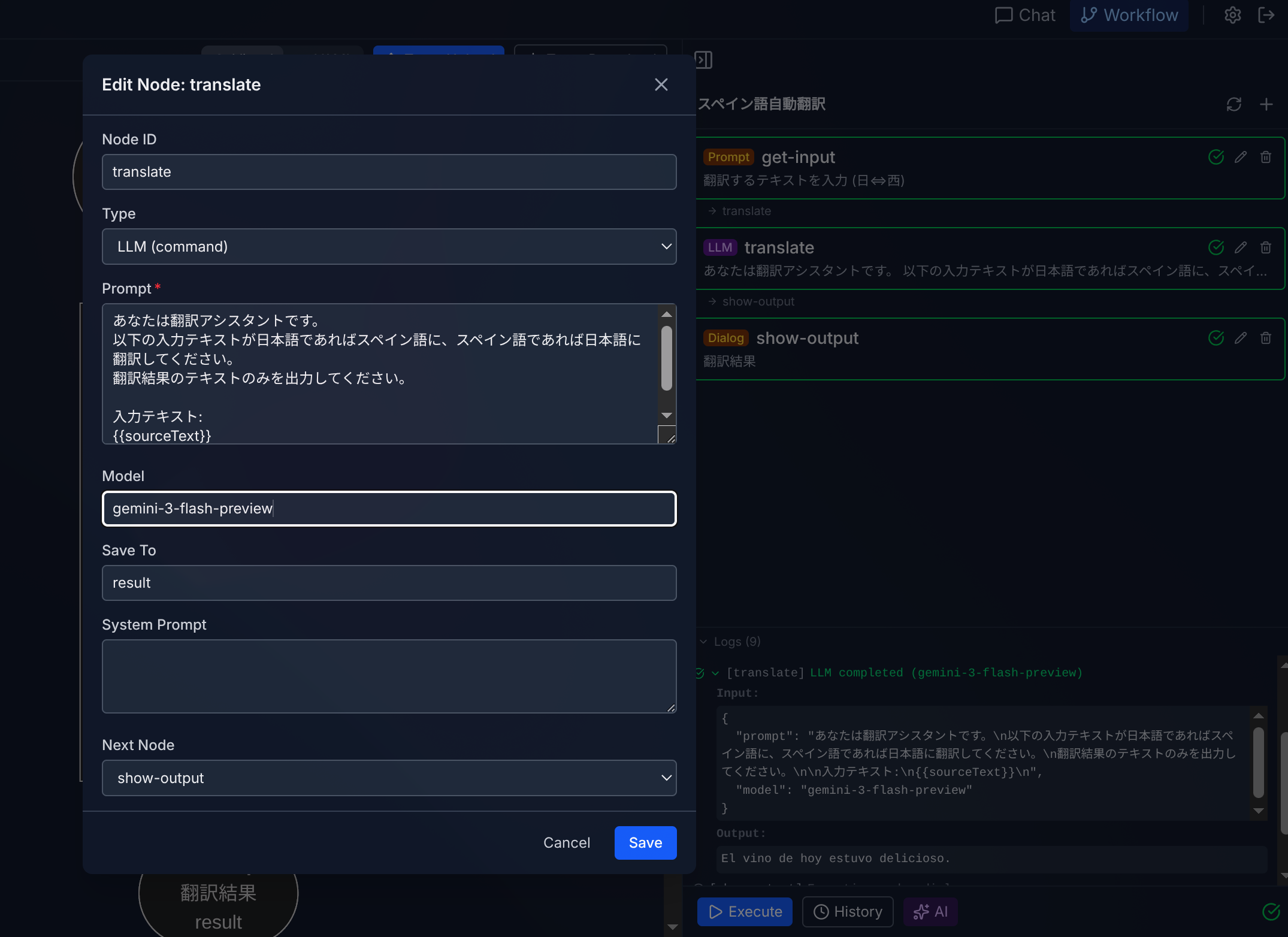
Each execution is recorded and saved to Drive. You can reference past execution history when creating or modifying workflows.