MCP (Model Context Protocol)
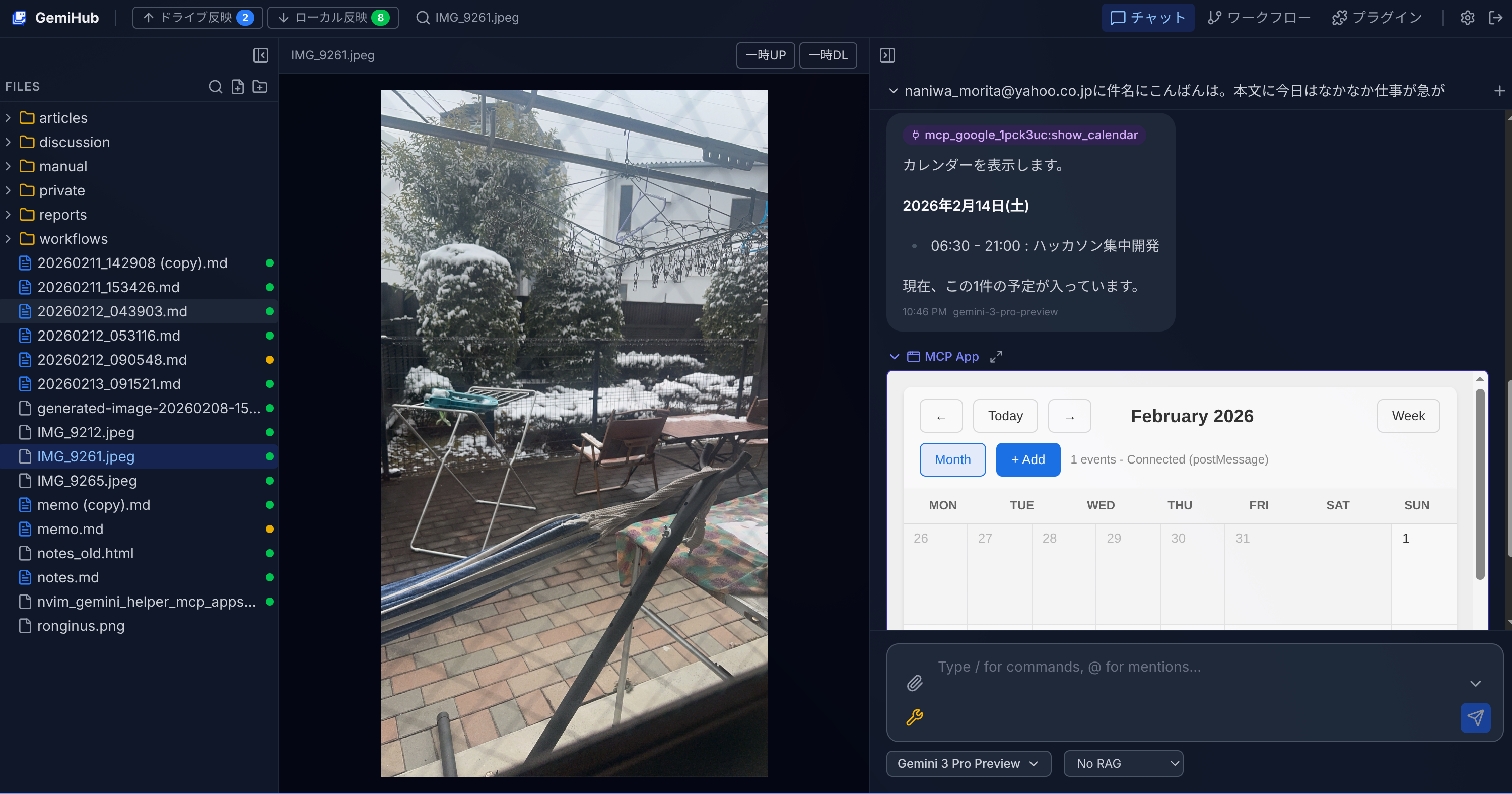
MCP allows GemiHub to connect to external services and tools. The AI can automatically discover and use tools provided by MCP-compatible servers during chat conversations and workflow execution.
Setting Up MCP Servers
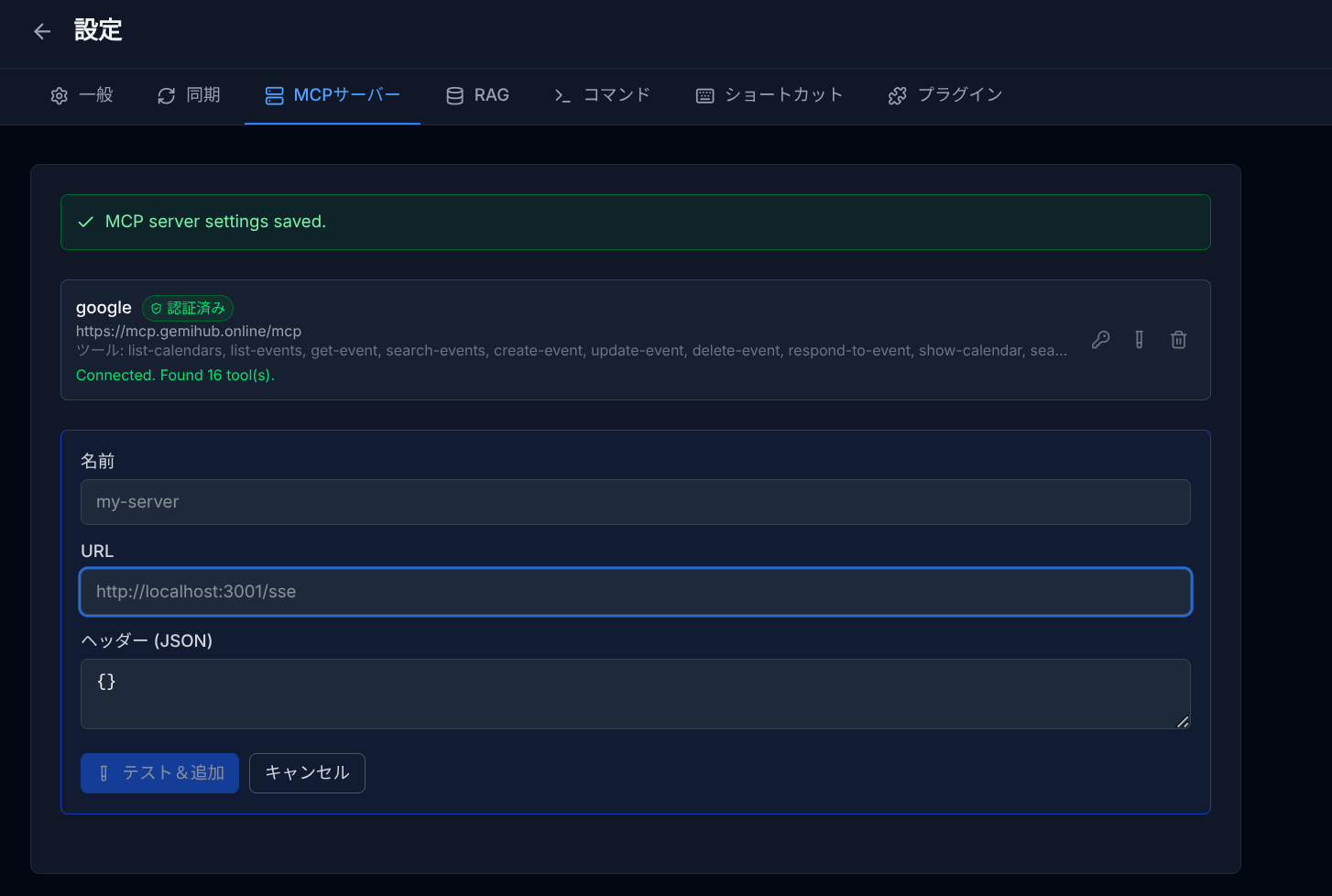
- Go to Settings > MCP Servers.
- Click Add Server.
- Enter a Name and the server URL.
- Optionally add custom Headers (JSON format) for authentication.
- Click Test & Add to verify the connection and discover available tools.
OAuth Authentication
MCP servers that support OAuth are automatically detected. GemiHub handles the OAuth flow — click the authenticate button and follow the prompts. Tokens are stored and refreshed automatically.
Using MCP Tools in Chat
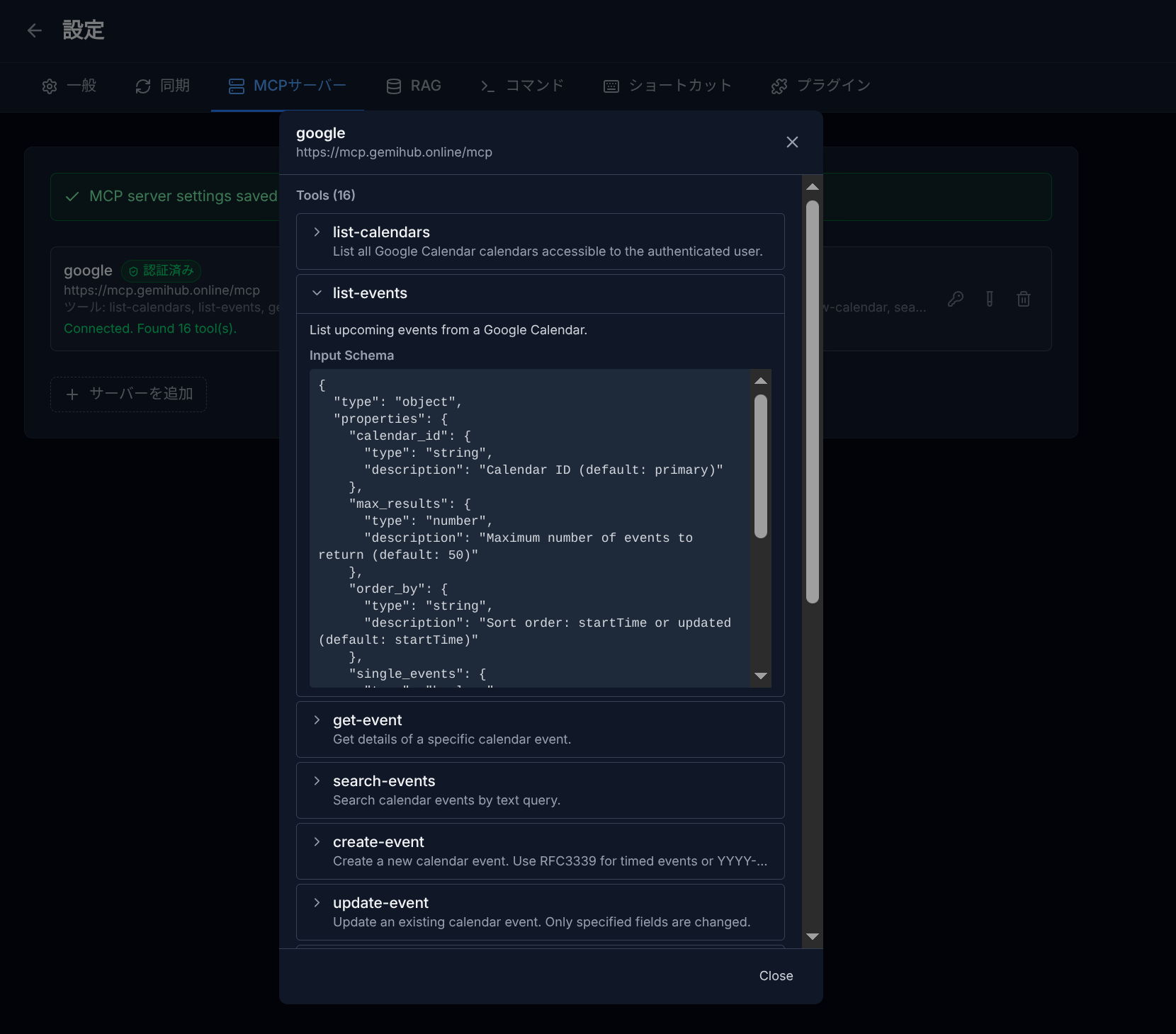
When MCP servers are configured, the AI can use their tools during conversation. Tools appear with prefixed names like mcp_serverName_toolName. You can enable or disable specific servers per chat session.
MCP Apps
When an MCP tool returns rich content (HTML, JSON), GemiHub renders it in a sandboxed iframe called an "MCP App." This allows interactive visualizations and custom UIs from external tools.
MCP in Workflows
Use the mcp node type in workflows to call MCP tools directly. Specify the server, tool name, and parameters. The result is stored in a variable for use in subsequent nodes.