Search
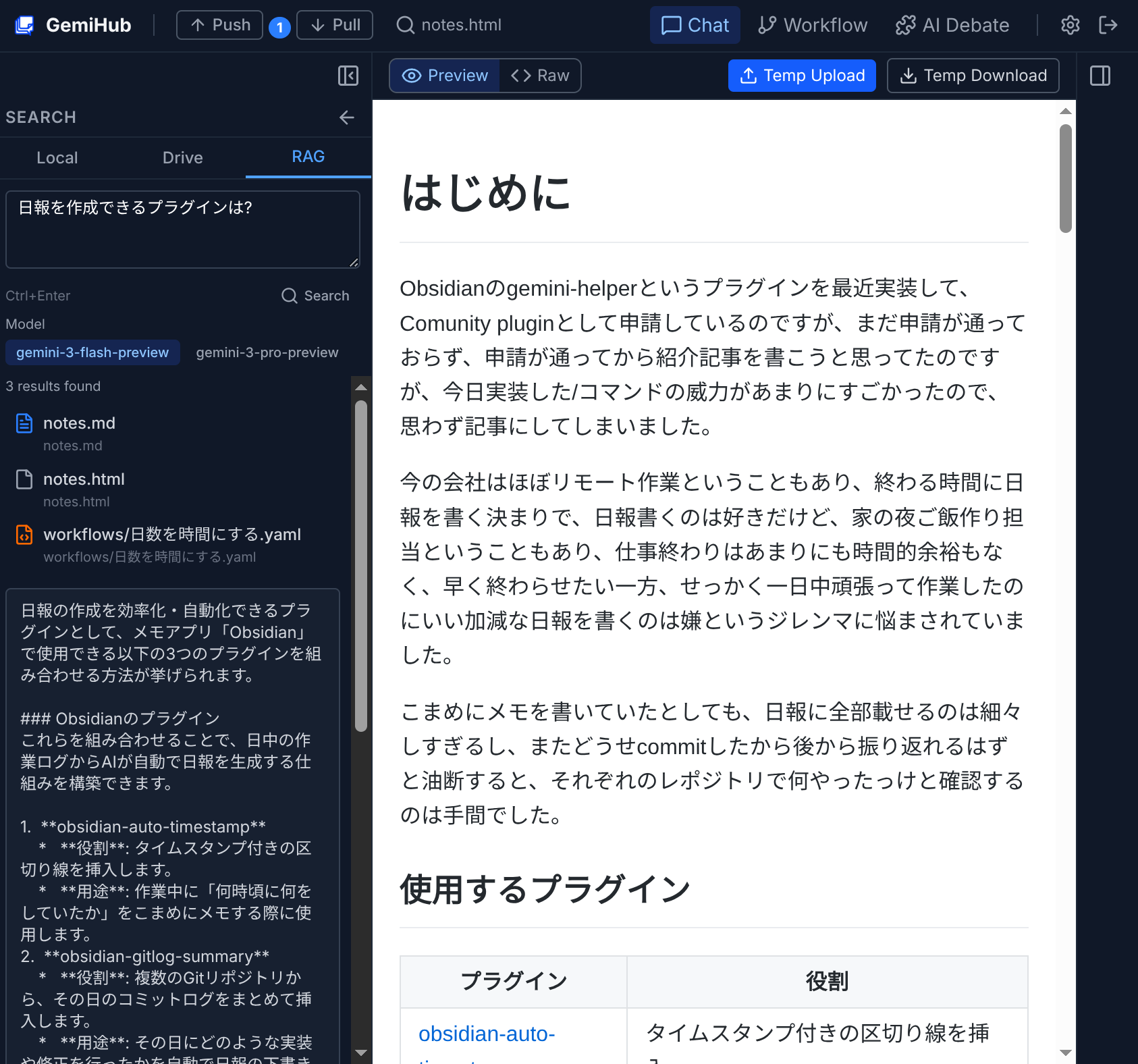
GemiHub offers three search modes and a Quick Open dialog for rapid file navigation.
Opening the Search Panel
Press Ctrl+Shift+F / Cmd+Shift+F or click the Search icon in the left sidebar. The search panel replaces the file tree when active.
Local Search
Searches files cached in your browser's IndexedDB. This works offline and searches both file names and content.
- Multi-term search: all terms must match (AND logic).
- Case-insensitive matching.
- Shows content snippets around matching terms.
- Only searches locally cached files.
Drive Search
Full-text search via Google Drive API. Searches file names and content in your gemihub/ folder. Requires internet connection.
RAG Search
Semantic search using Gemini's File Search (RAG). Searches by meaning rather than exact keywords. Requires configured RAG stores in Settings.
- Uses a multiline text input (press Ctrl+Enter / Cmd+Enter to search).
- Returns both matching file results and an AI-generated answer.
- Select the model used for RAG search from the dropdown.
Quick Open
Press Ctrl+P / Cmd+P to open the Quick Open dialog. Type to filter files by name and path, then press Enter to open the selected file. Navigate with arrow keys.