Encryption
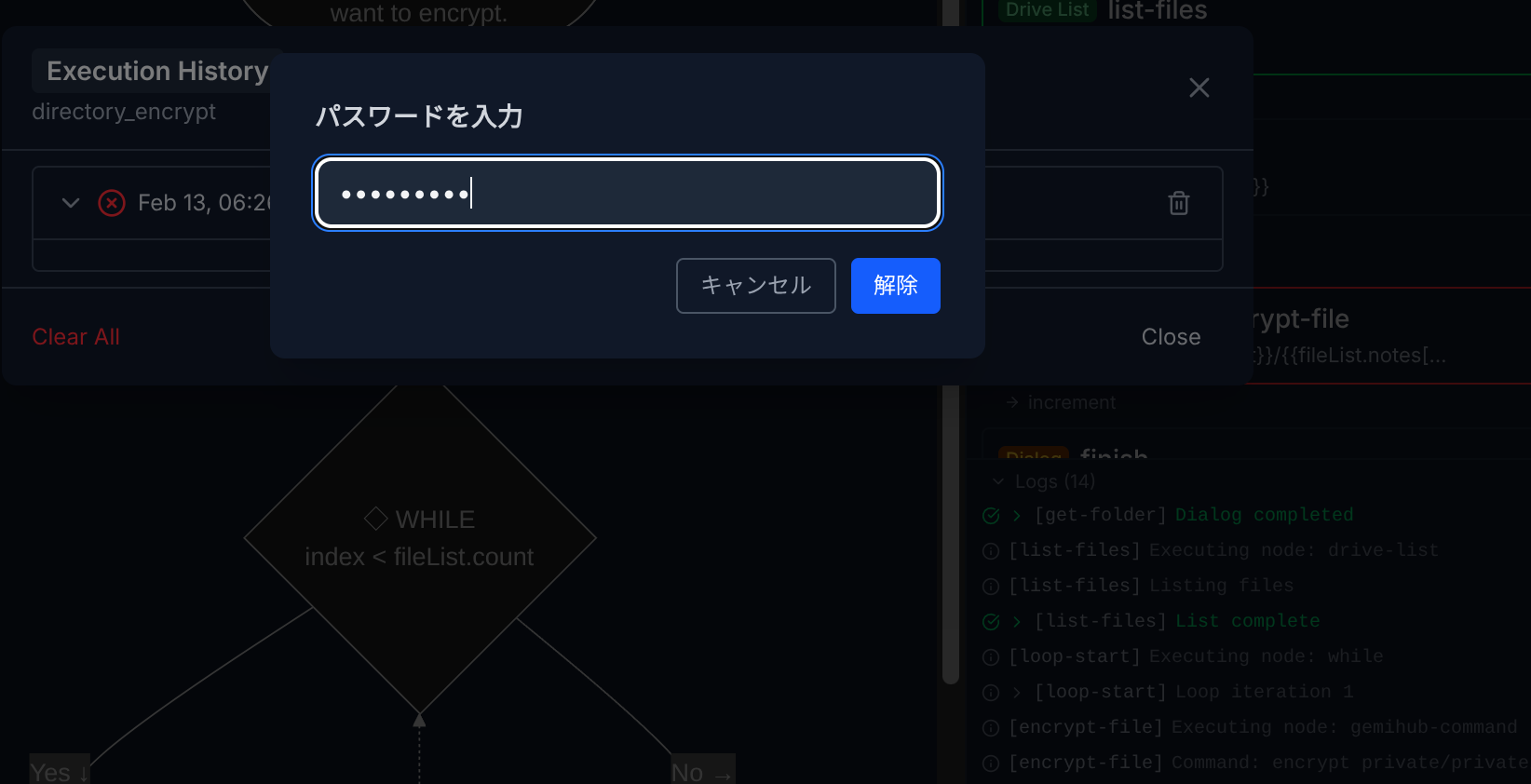
GemiHub supports client-side encryption using a hybrid RSA+AES scheme. All encryption and decryption happens in your browser — your password is never sent to any server.
Setting Up Encryption
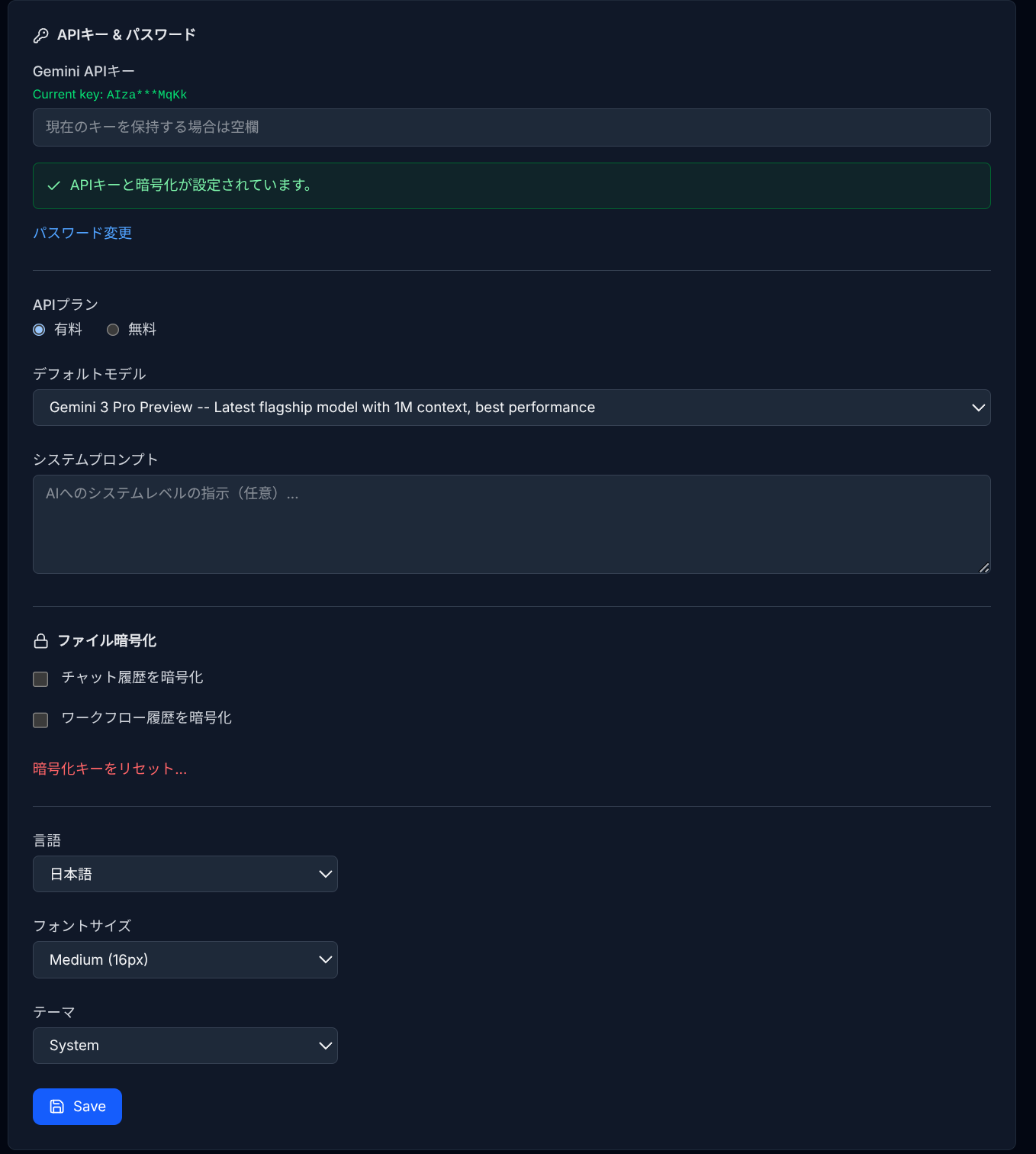
- Go to Settings > General.
- In the API Key & Password section, set a password (minimum 8 characters).
- The password is used to derive encryption keys on the client side.
Encrypting Files
- Right-click a file in the file tree.
- Select Encrypt.
- The file will be encrypted and renamed with an
.encryptedextension.
To open an encrypted file, click on it and enter your password when prompted. The decrypted content is displayed in the editor.
Decrypting Files
Right-click an encrypted file and select Decrypt to permanently remove encryption. The .encrypted extension is removed.
Chat History Encryption
Enable Encrypt Chat History in Settings > General to automatically encrypt all chat conversations when saved to Drive.
Workflow History Encryption
Enable Encrypt Workflow History to encrypt workflow execution logs saved to Drive.
API Key Protection
Your Gemini API key is encrypted with your password and stored securely on Drive. You'll need to enter your password when starting a new session to unlock the API key.
Important Notes
Warning: If you lose your password, there is no way to recover encrypted data.
The password is used entirely on the client side and is never stored on any server. GemiHub cannot reset or recover your password. Encrypted files, chat history, workflow history, and your API key will all become permanently inaccessible. Always keep your password in a safe place.
- Encrypted files are stored on Drive in encrypted form — even Google cannot read them.
- The password is cached in your browser session. You only need to enter it once per session.
- Resetting encryption keys will make all previously encrypted data unreadable.