File Editor
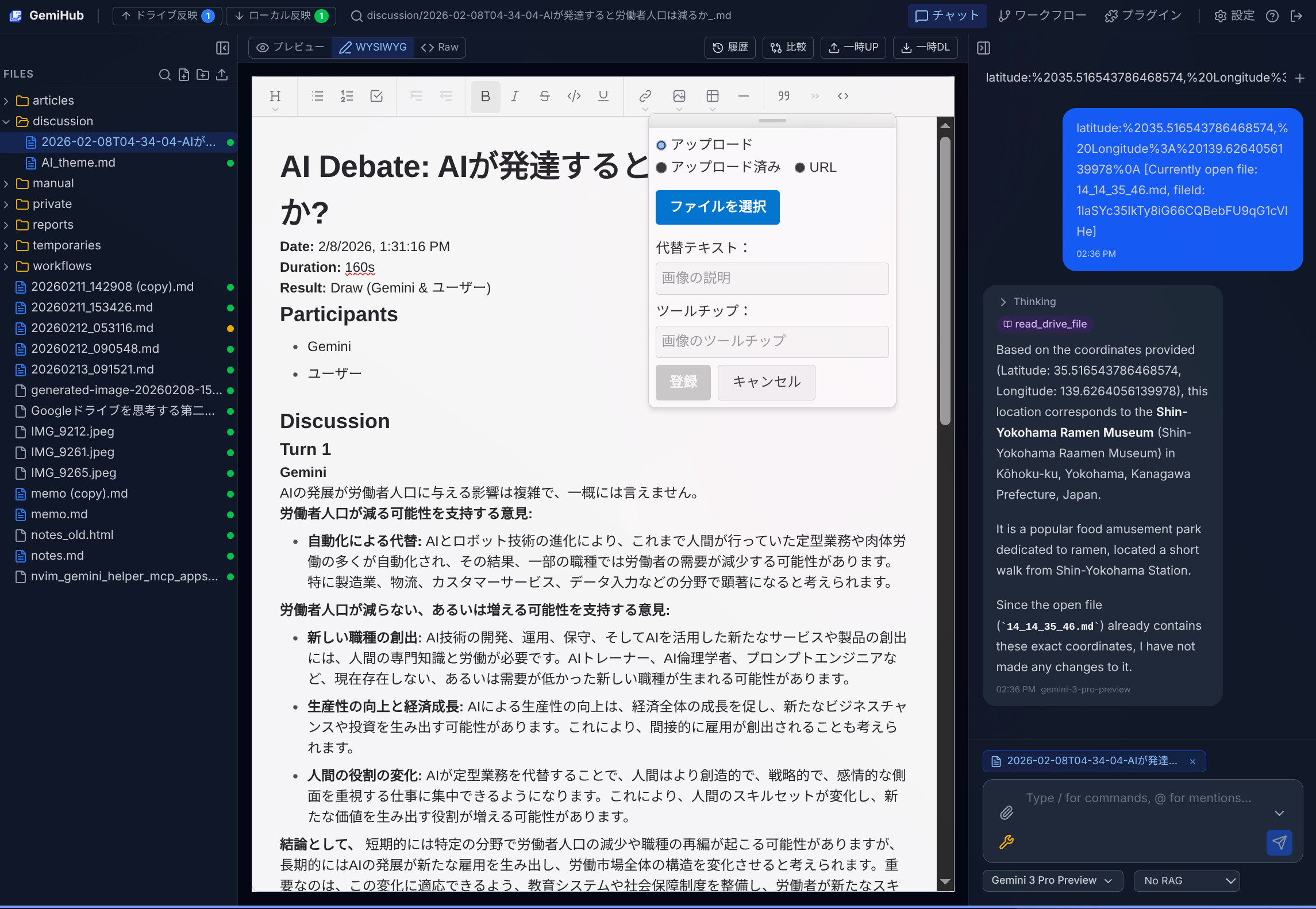
GemiHub includes a built-in editor that adapts to the file type. Markdown files get a full editing experience, workflow files show visual diagrams, and binary files are displayed with appropriate viewers.
Editing Modes (Markdown)
- Preview — Read-only rendered Markdown with syntax highlighting.
- WYSIWYG — Rich text editing with formatting toolbar (bold, italic, headings, lists, tables, images, links).
- Raw — Plain text editor for direct Markdown editing.
Switch between modes using the tab bar at the top of the editor.
Workflow Editor
When a .yaml workflow file is selected, the Preview mode shows a Mermaid flowchart diagram. The Raw mode allows direct YAML editing. Workflow properties and execution controls are in the right sidebar.
Auto-Save
Changes are automatically saved to the local IndexedDB cache with a 1-second debounce (5 seconds for encrypted files). The "Saved" indicator appears in the top bar when changes are committed. Changes are synced to Drive via Push to Drive.
Diff View
Click the Diff tab to compare the current file with any other file in your workspace. Select the comparison target from the dropdown.
Edit History
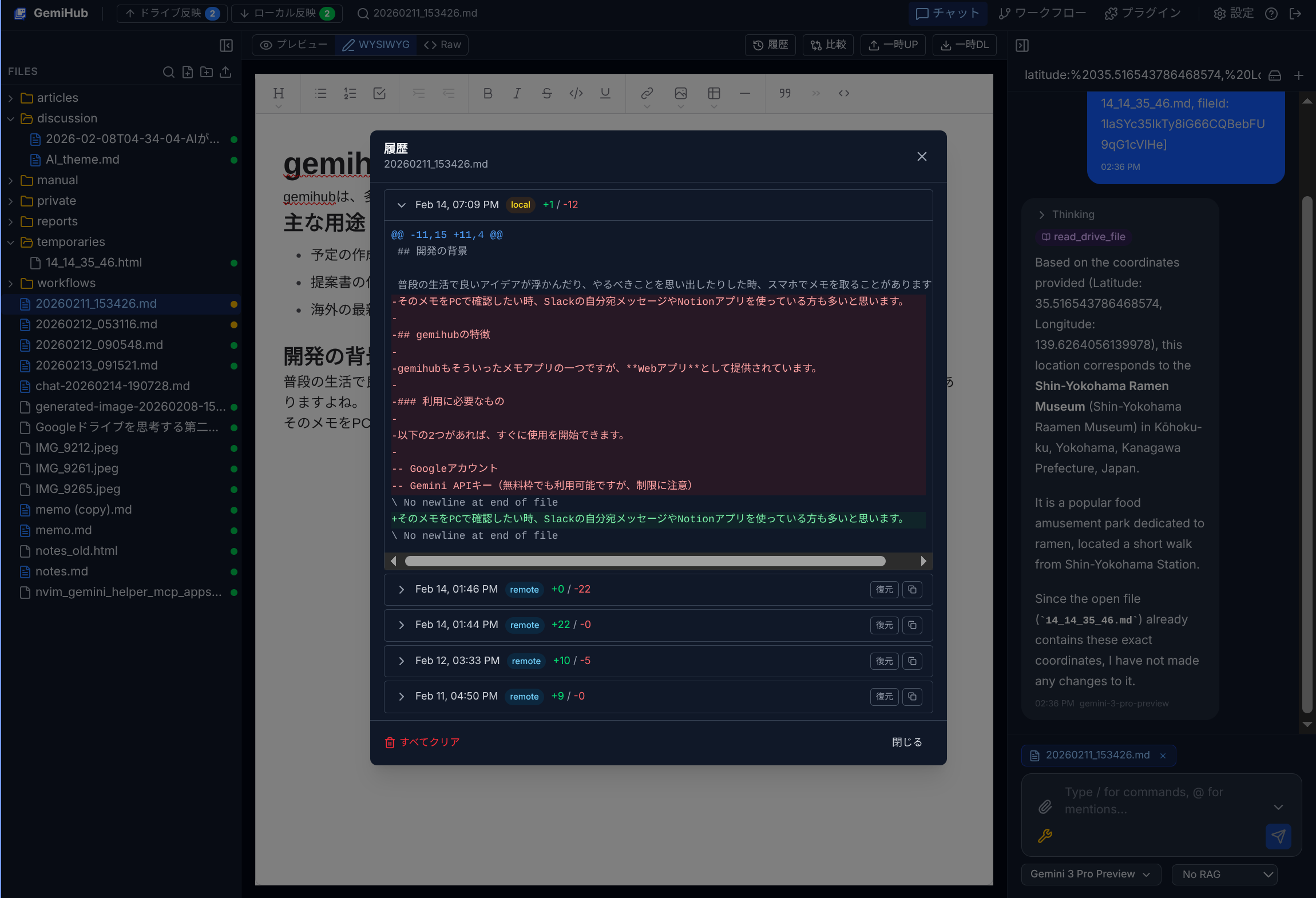
Right-click a file and select History to view its edit history. You can:
- Browse past versions with timestamps.
- View diffs between versions.
- Restore a file to any previous version.
- Save a previous version as a new file.
- View remote history (changes made from other devices).
Publishing

Right-click a file and select Publish to Web to make it publicly accessible via URL. HTML and Markdown files are rendered; other types are served with their original MIME type.
File Type Support
- Markdown (.md) — Full editing with Preview / WYSIWYG / Raw modes.
- YAML (.yaml) — Workflow editor with visual diagram.
- JSON (.json) — Syntax-highlighted editor.
- Images (.png, .jpg, etc.) — Image viewer with zoom.
- PDF (.pdf) — Embedded PDF viewer.
- Audio / Video — Media player.
- Encrypted (.encrypted) — Password prompt, then decrypted content editor.
Temp Edit (Temporary File Sharing)
Share files temporarily with external tools or other devices. File content is stored in the Google Drive __TEMP__ folder.
Temp Upload
- Click the Temp UP button in the editor toolbar (or right-click a file and select Temp UP).
- A confirmation dialog asks whether to generate a shareable edit URL.
- If confirmed, the server issues a fresh access token (valid for 1 hour), encrypts it into the URL, and copies it to the clipboard.
- If declined, the file is uploaded to
__TEMP__without generating a URL.
Edit URL
The generated URL (/api/temp-edit/:token/:fileName) allows unauthenticated GET/PUT access for 1 hour. The encrypted token contains the access credentials, so no login is required. External tools can read and write the file via this URL.
Temp Download
Click Temp Download to check the __TEMP__ folder for changes and merge them into the editor.
New File Creation
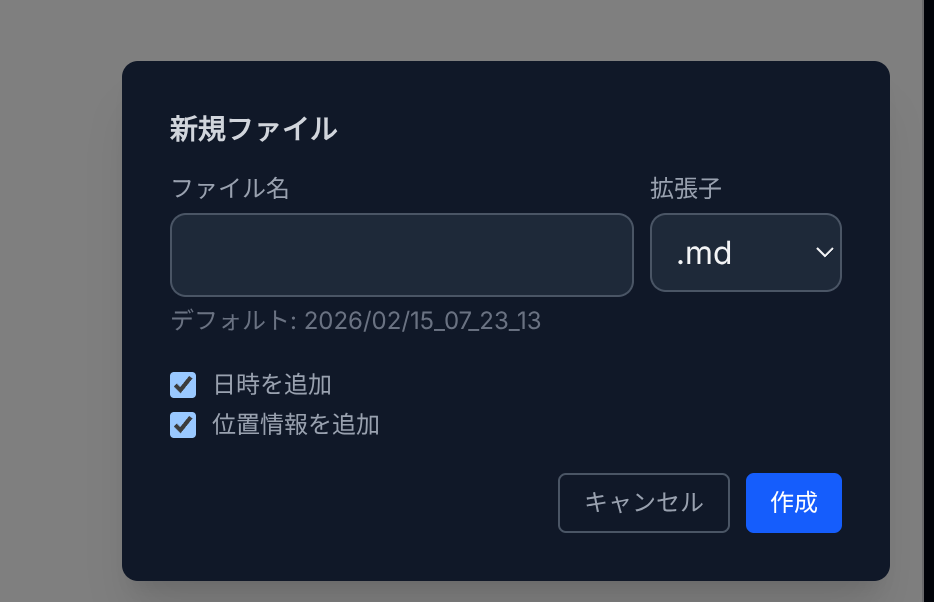
Click the New File button in the file tree toolbar to open the creation dialog. In addition to specifying a file name and extension, you can optionally include metadata in the initial content:
- Add date/time — Inserts the current date and time at the top of the file.
- Add location — Requests browser geolocation and inserts latitude/longitude coordinates.
Checkbox preferences are saved and restored on the next file creation. For .md files, labels are bold-formatted. Geolocation uses the Web Geolocation API with a 10-second timeout; if it fails, the location is simply omitted.
Using Location Data with AI Chat
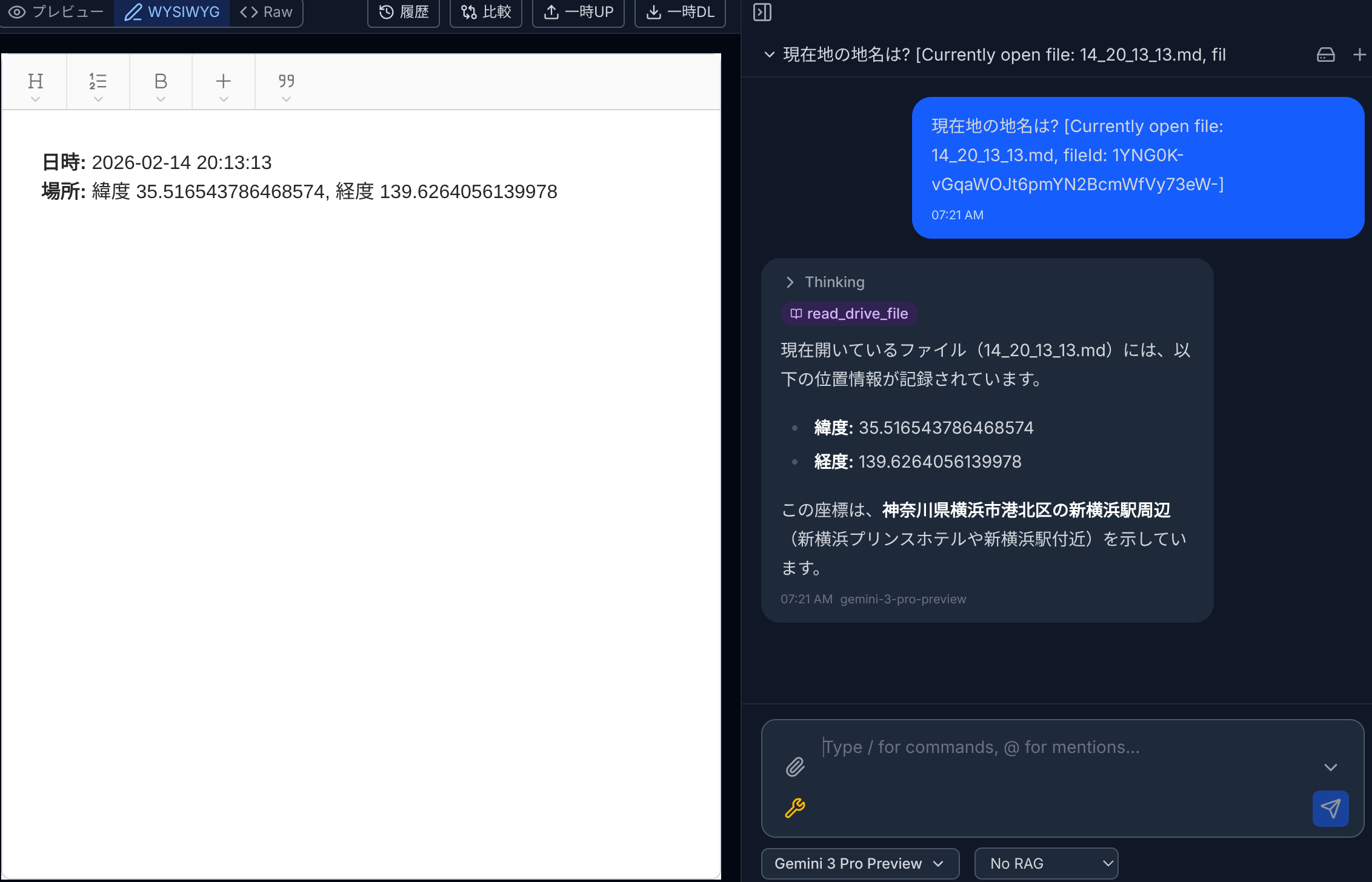
When a memo contains latitude and longitude, you can ask the AI in the chat panel to identify the place name. The AI reads the file content via the read_drive_file function call and resolves the coordinates to a human-readable location.
Context Menu Actions
Right-click a file in the file tree for additional actions:
- Rename, Download, Duplicate
- Convert to PDF / HTML
- Publish / Unpublish
- Encrypt / Decrypt
- Clear cache, Move to trash
- View edit history
- Temp file upload/download (for cross-device sharing)