Sync: Push to Drive / Pull to Local
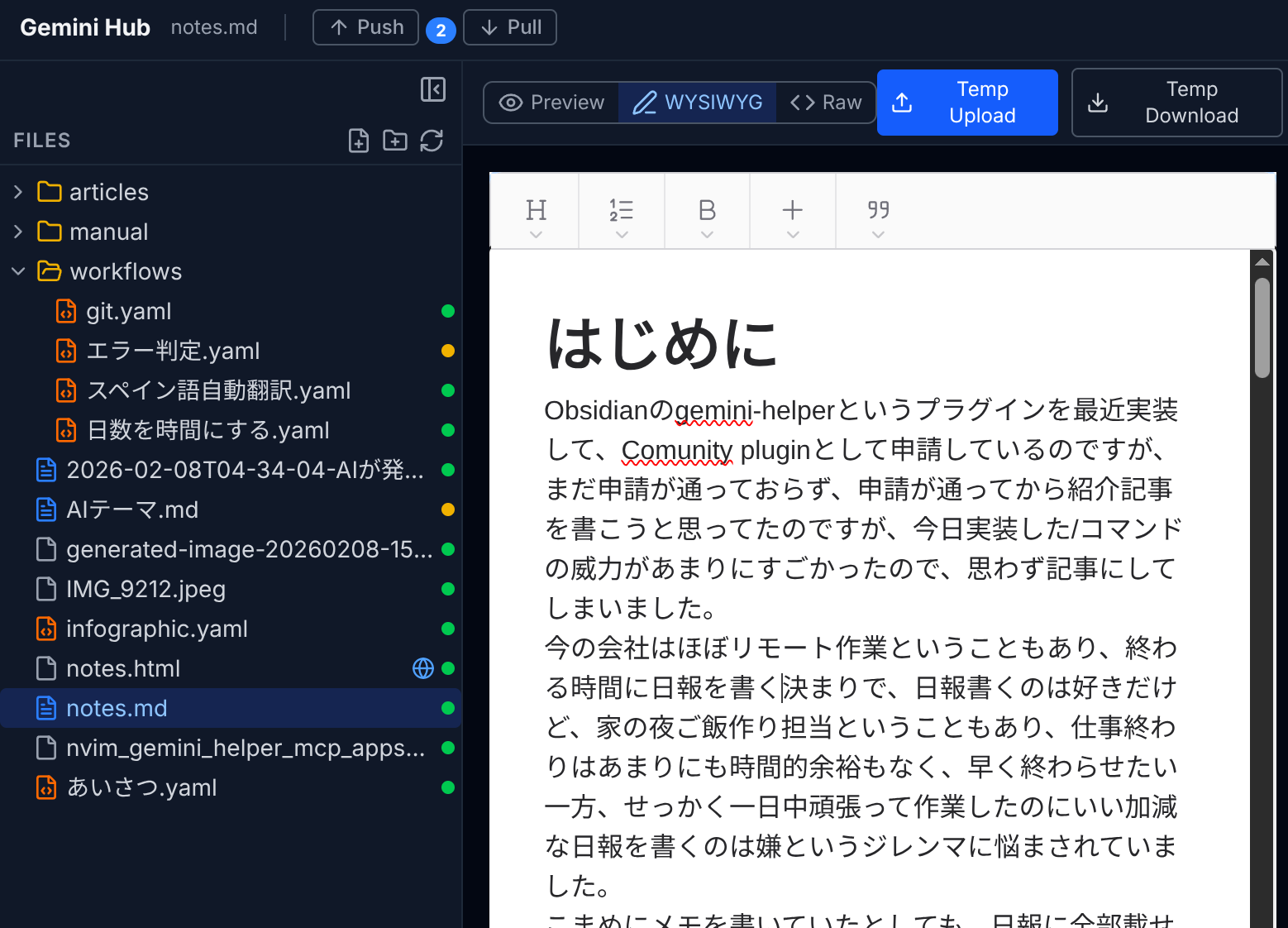
GemiHub uses an offline-first architecture. All files are cached locally in your browser's IndexedDB. Syncing with Google Drive is done manually via Push to Drive (upload local changes) and Pull to Local (download remote changes).
How Sync Works
- Edit locally — All file edits are saved to the browser cache immediately.
- Push to Drive — Upload changed files from local cache to Google Drive.
- Pull to Local — Download changed files from Google Drive to local cache.
Before syncing, a diff dialog shows exactly which files will be synced, with status badges (new, modified, deleted).
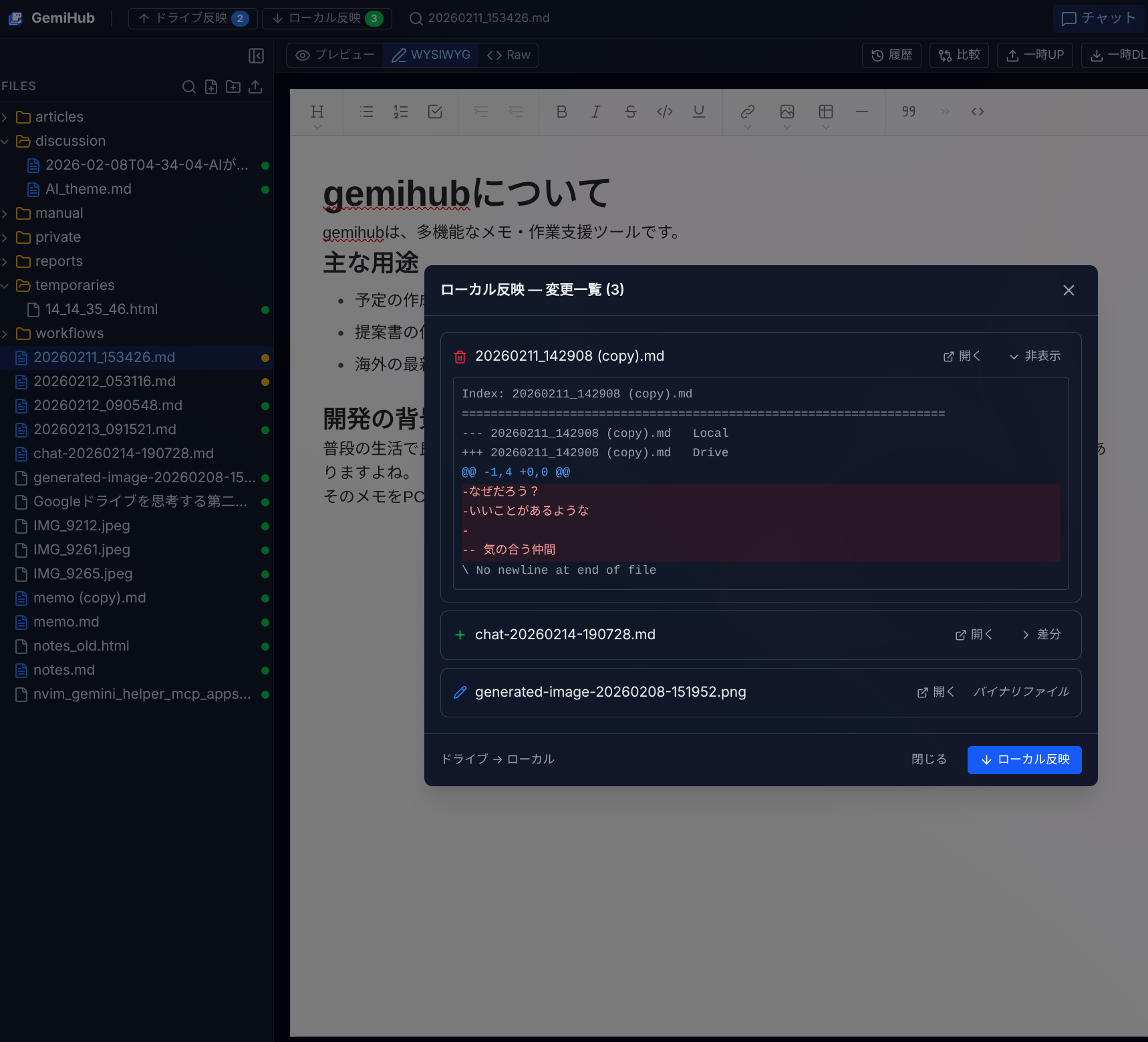
If you want to keep your local version over the pulled content, you can open the file first and upload it via Temp UP, then perform the Pull, and afterwards overwrite it using Temp DL. This will mark the file as locally modified so it will be uploaded on the next Push.
Sync Badges
The header shows sync badges with the number of pending changes. Click a badge to see the list of changed files and initiate sync.
Conflict Resolution
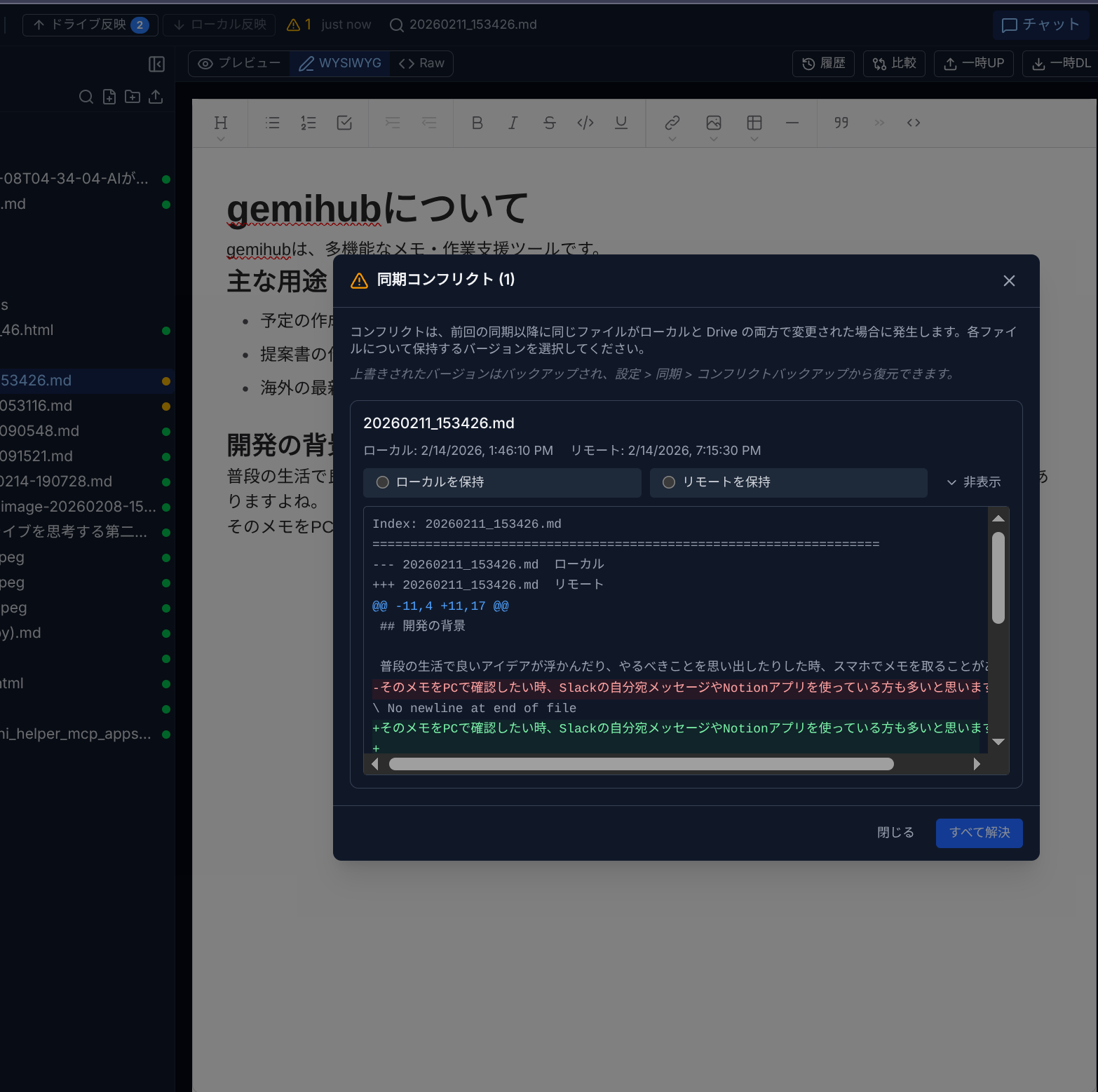
A conflict occurs when the same file has been modified both locally and on Drive since the last sync. When conflicts are detected:
- A conflict dialog appears showing each conflicting file.
- Choose Keep Local or Keep Remote for each file.
- The overwritten version is automatically backed up to a conflict folder on Drive.
- You can restore conflict backups from Settings > Sync > Conflict Backups.
Sync Settings
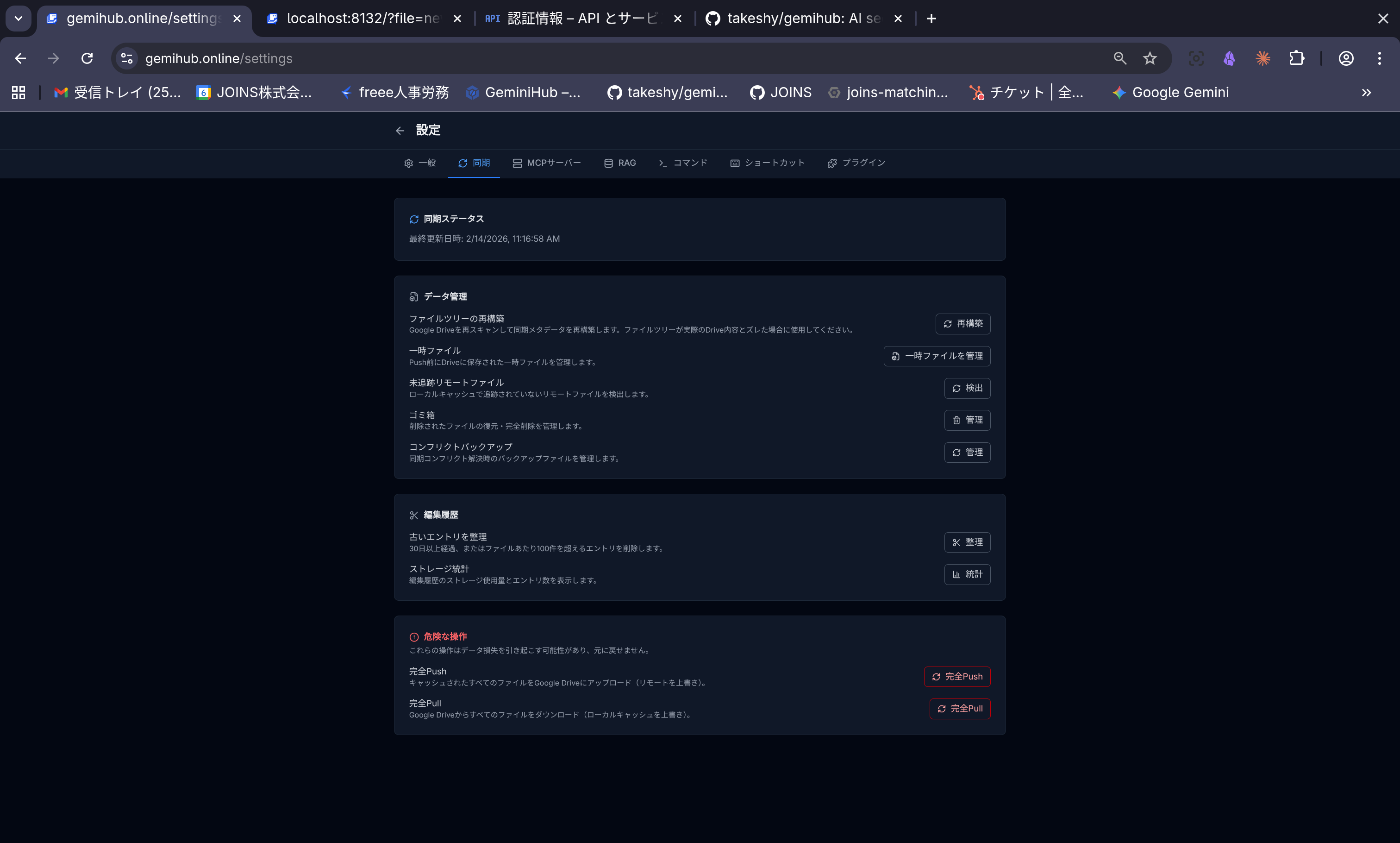
In Settings > Sync, you can:
- Full Push — Upload all cached files (overwrites remote).
- Full Pull — Download all remote files (overwrites local cache).
- Manage Trash — Restore or permanently delete trashed files.
- Manage Conflict Backups — View and restore conflict backup files.
- Rebuild File Tree — Re-scan Drive to fix sync metadata.
- Detect Untracked Files — Find remote files not in local cache.
Trash
Deleting a file moves it to a trash/ folder on Drive (soft delete). You can restore trashed files from Settings > Sync, or permanently delete them.
Offline Usage
When offline, you can continue editing cached files. An offline indicator appears in the header. Sync features are disabled until connectivity is restored. Once online, use Push to Drive to upload your changes.