RAG (Retrieval-Augmented Generation)
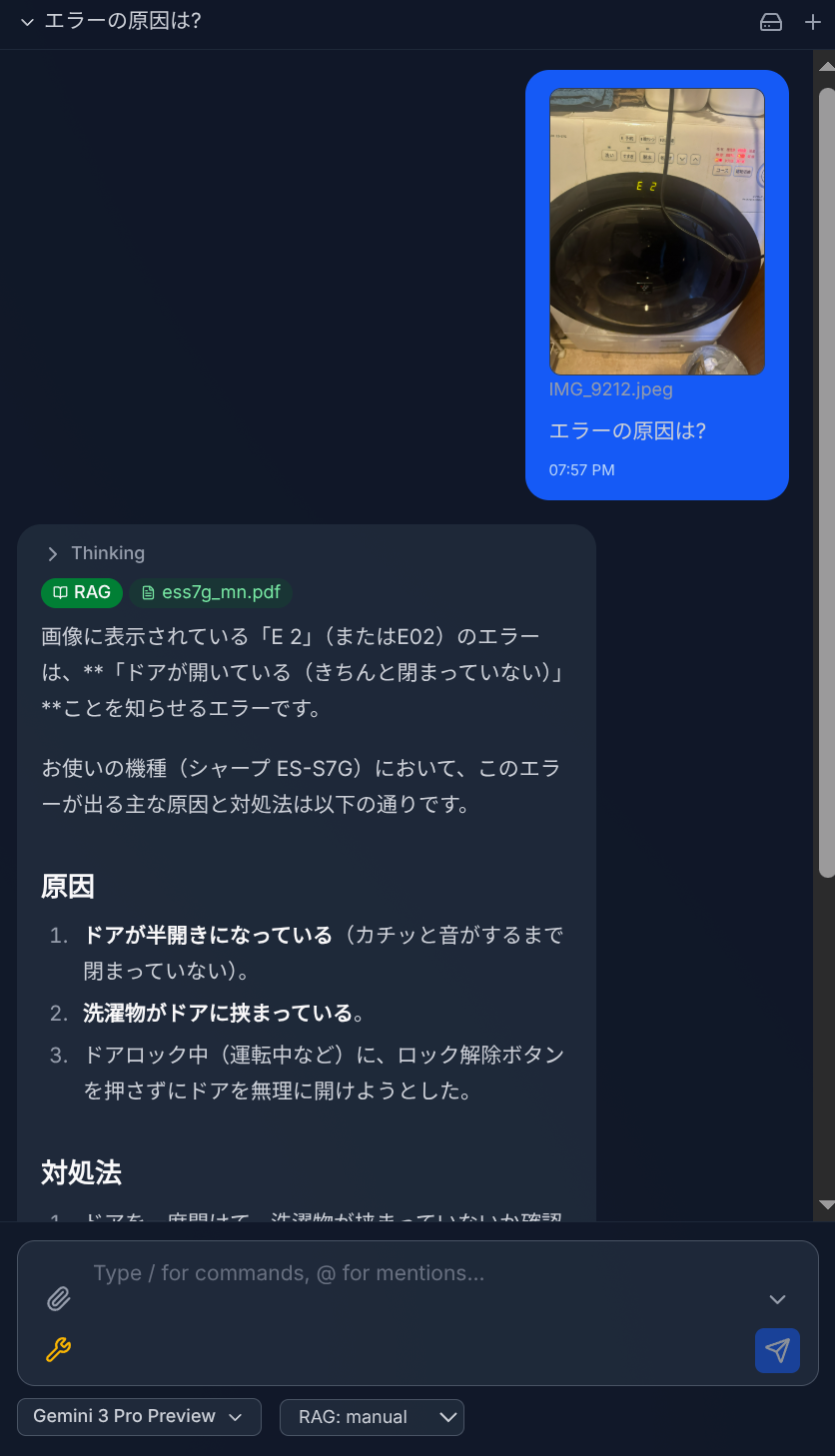
RAG allows the AI to search your documents by meaning and generate answers based on the relevant content. Your files are indexed in a Gemini File Search store, enabling meaning-based search (RAG) that goes beyond keyword matching.
Setting Up RAG
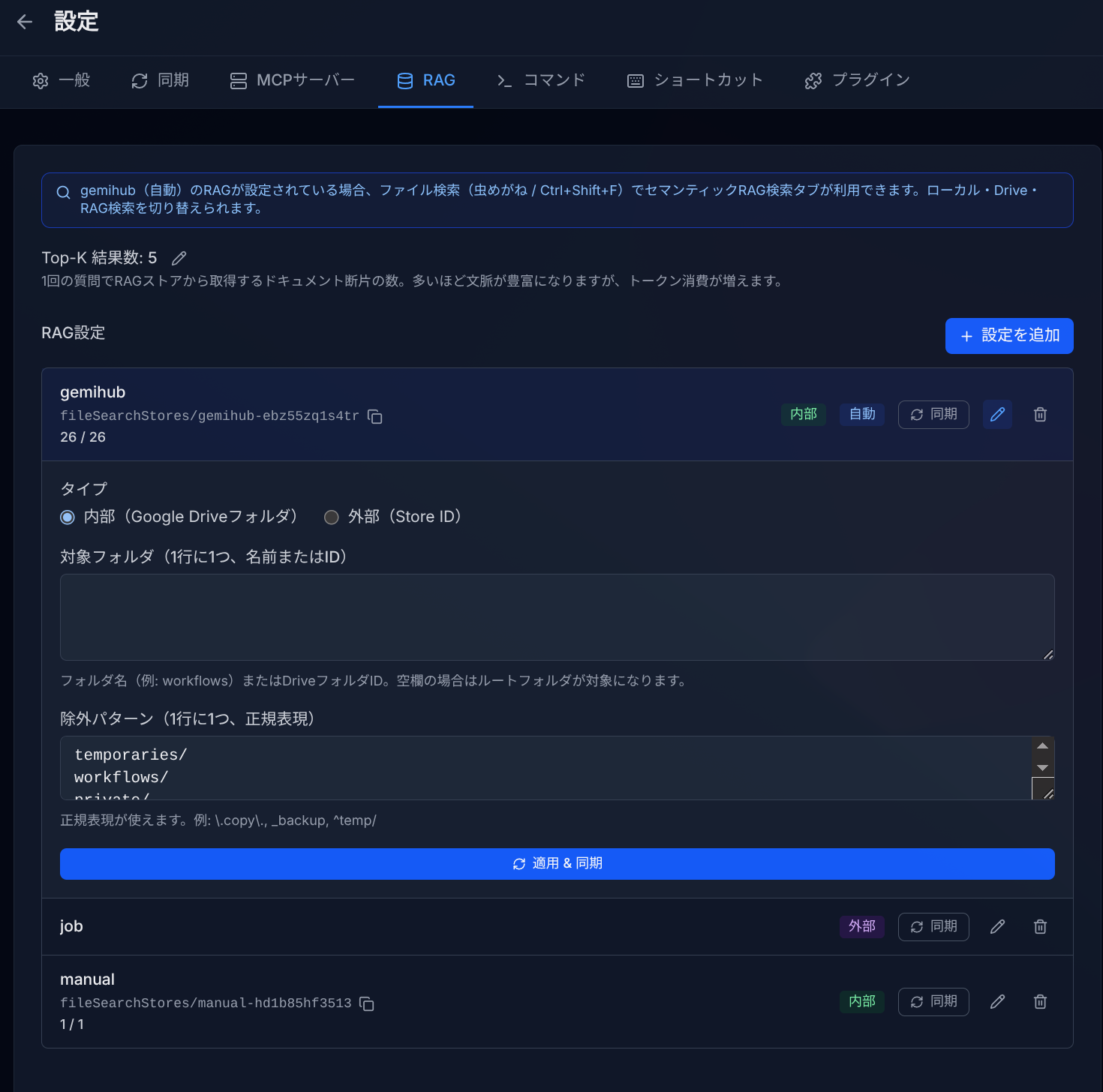
- Go to Settings > RAG.
- Click Add Setting to create a new RAG configuration.
- Choose the type:
- Internal — Automatically syncs files from specified Drive folders.
- External — Connect to pre-existing Gemini File Search store IDs.
- For Internal type, specify target folders and optional exclude patterns.
- Click Sync to start indexing your files.
Auto RAG Registration
Enable Auto RAG Registration to automatically register eligible files when you sync changes to Drive (Push to Drive). You can choose between registering all files or customizing which folders to include.
This feature uses the built-in gemihub RAG store exclusively. Files pushed to Drive are registered to this default store only — other RAG settings (External type or additional Internal configurations) are not affected by auto registration.
System-generated files, chat history, workflow history, and encrypted files are automatically excluded.
Using RAG in Chat
When RAG stores are configured, the AI can use File Search as a tool during chat conversations. The AI automatically searches your indexed documents to find relevant information and generate informed answers.
When RAG is enabled, the Drive Search tool (search_drive_files / list_drive_files) is disabled by default. This is because the AI tends to spend tokens calling Drive search instead of using RAG's semantic search, often resulting in missed or irrelevant results. Other Drive tools (read, create, update) remain available.
RAG Search Panel
When the default gemihub RAG store is configured, a RAG tab appears in the search panel (Ctrl+Shift+F). Enter a question in natural language to get meaning-based search results and an AI-generated answer.
Top-K Setting
The Top-K setting controls how many document chunks are retrieved per query (1–20). Higher values provide more context but use more tokens.
RAG in Workflows
Use the rag-sync node to sync files to your RAG store during workflow execution. The command node can also use RAG as a search tool.