AI Chat
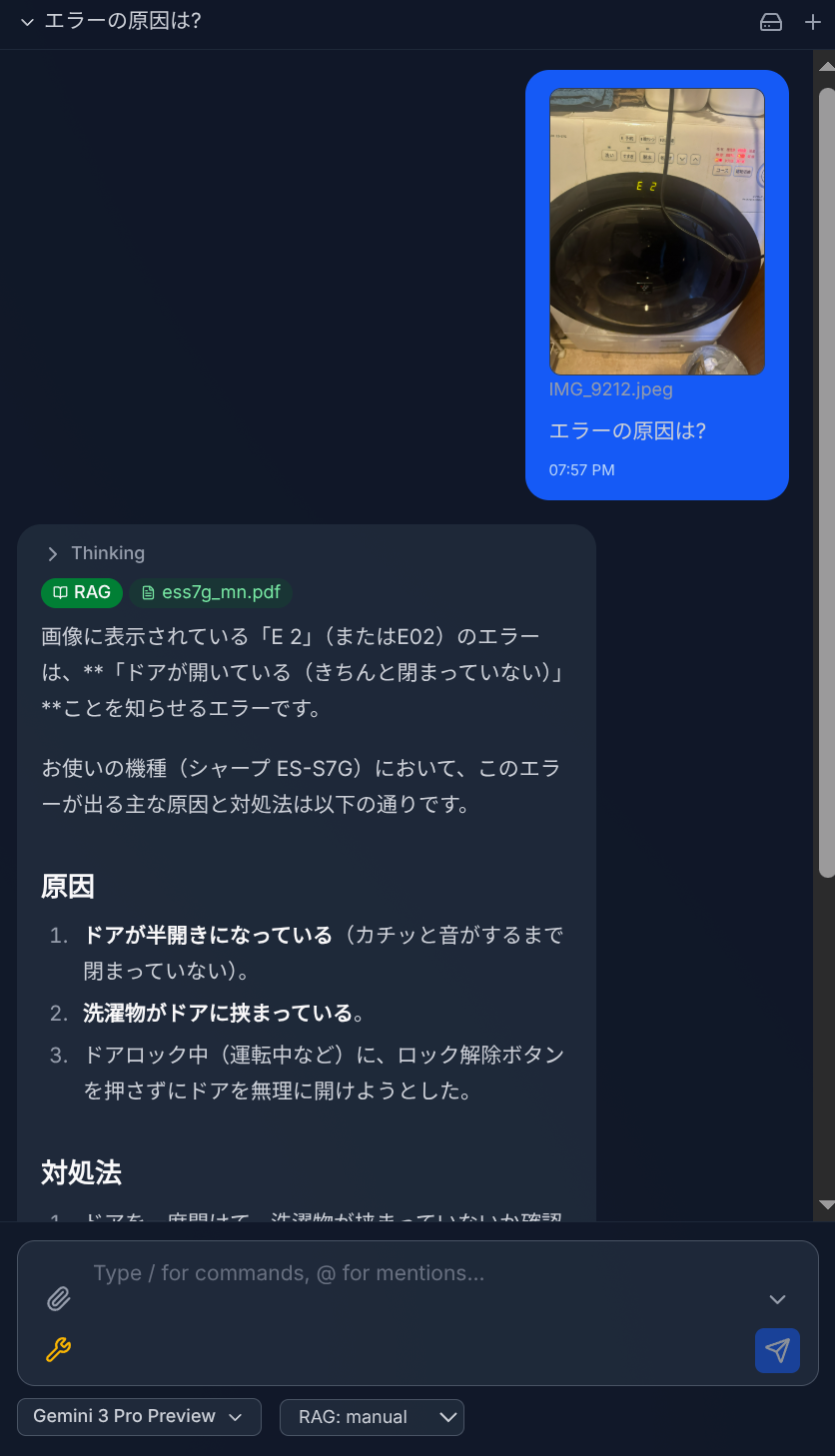
The Chat panel is your interface for conversing with Google Gemini AI. It supports real-time streaming responses, automatic tool use, file attachments, and custom slash commands.
Basic Usage
- Type your message in the input box and press Enter (or click Send).
- Responses stream in real-time. You can stop generation at any time.
- The AI sees the currently open file as context (you can dismiss this).
- Click New Chat to start a fresh conversation. Previous chats are saved in the history dropdown.
Model Selection
Select a Gemini model from the dropdown. Available models depend on your API plan (Free / Paid). Some models support extended thinking — the AI's reasoning process is displayed in a collapsible section.
Model-Specific Limitations
- Gemma models — Do not support function calling (tool use) or extended thinking. When a Gemma model is selected, all tools (Drive, MCP, RAG, Web Search) are automatically disabled.
- Flash Lite + RAG — When RAG is enabled with a Flash Lite model, Drive and MCP tools are disabled. Flash Lite cannot combine function calling tools with RAG file search in a single request.
Function Calling (Agentic AI)
The AI can automatically choose and execute tools during the conversation:
- Drive tools — Read files, search files, list folders, create and update files on your Drive.
- Web Search — Search the internet using Google Search.
- RAG / File Search — Semantic search through your RAG-indexed documents.
- MCP tools — Tools from connected MCP servers (databases, APIs, etc.).
- Image Generation — Generate images with compatible models.
Tool mode can be set to Auto (AI decides), Manual (require confirmation), or None (disable tools).
Web Search Mode
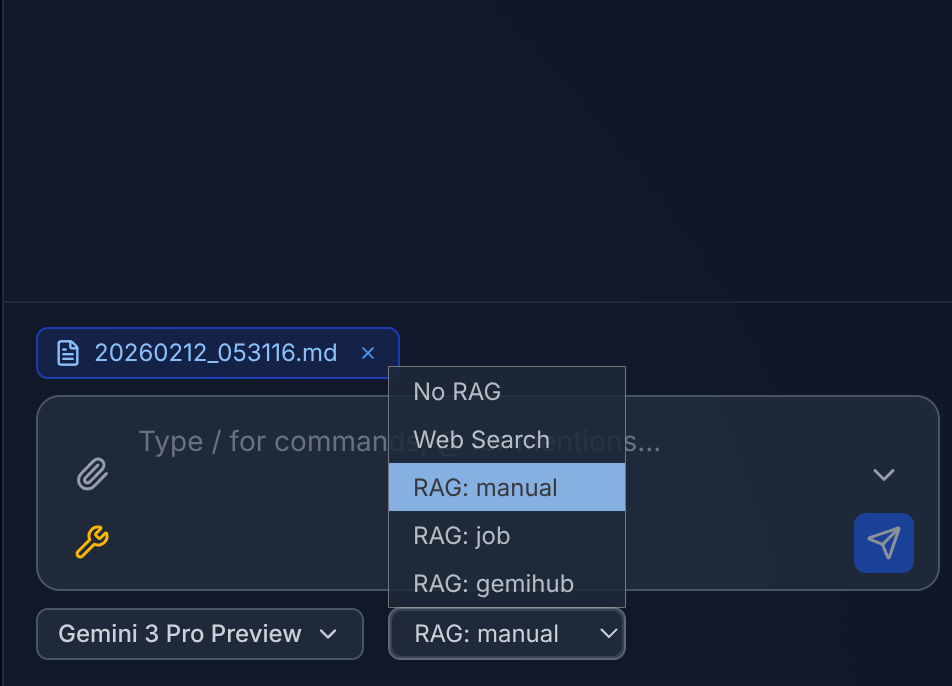
When Web Search is enabled, the AI uses Google Search exclusively. All other tools (Drive, MCP, RAG) are disabled during Web Search mode, because Google Search is incompatible with other tool types in a single request.
RAG and Drive Search
When RAG is enabled, the Drive Search tool (search_drive_files / list_drive_files) is disabled by default. This is because the AI tends to spend tokens calling Drive search instead of using RAG's semantic search, often resulting in missed or irrelevant results. RAG provides more accurate, meaning-based retrieval. You can override this in the tool mode settings if needed.
Drive Tools & MCP
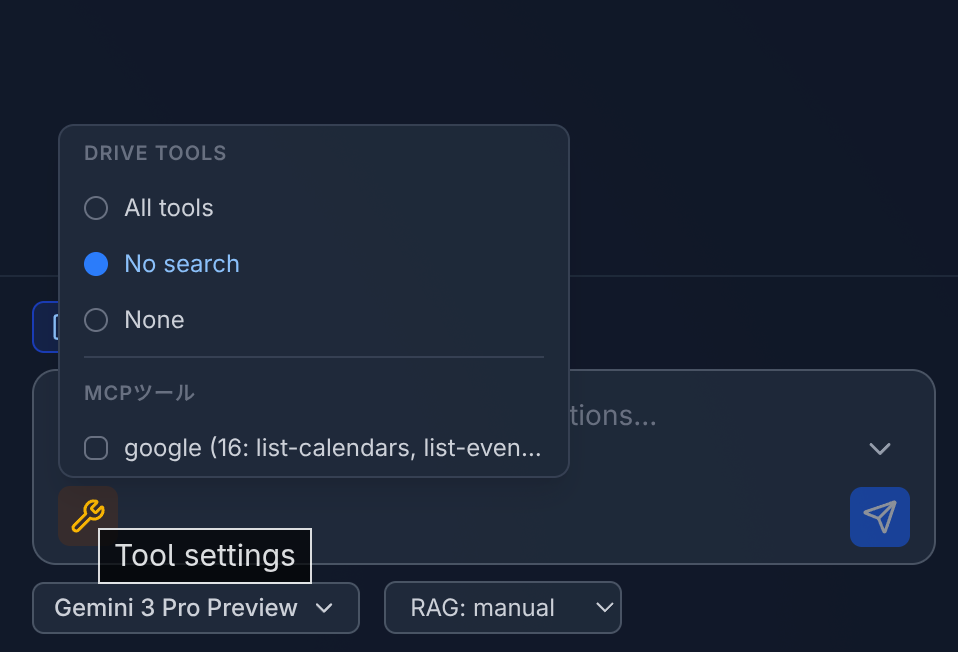
Configure Drive tool mode and select which MCP servers to enable for the conversation. These settings control which tools are available to the AI during function calling.
File Attachments
Drag and drop images or PDFs onto the chat input to attach them to your message. The AI can analyze the attached files.
Slash Commands
Type / to see available commands. Slash commands are custom prompt templates configured in Settings > Commands. They support template variables:
{content}— Content of the currently open file.{selection}— Currently selected text in the editor.@filename— Content of a specific Drive file (autocomplete available).
Each command can override the model, search settings, Drive tool mode, and enabled MCP servers.
Chat History
Conversations are automatically saved to Drive. Open the history dropdown to browse, continue, or delete past conversations. History can optionally be encrypted.
Save to Drive
Click the Save to Drive icon (hard drive icon) in the chat header to export the current conversation as a Markdown file in your Drive.